> ## Documentation Index
> Fetch the complete documentation index at: https://sbmg.app/llms.txt
> Use this file to discover all available pages before exploring further.
# Failure Alerting
> Learn how to configure alerts and stay informed when messages fail to send.
Failure alerting notifies you immediately when a message cannot be sent from your gateway, allowing you to quickly address any potential issues.
## Basic alerting vs Detailed alerting
We offer two levels of Failure Alerting: Basic and Detailed.
Both settings will send an instant notification for the first time an error occurs in a 4 hour period. The primary differnce is how frequently you will receive a notification after the initial alert.
As shown below, Basic alerting will only notify you once in a four hour period that you should check the Gateway Portal to look into the issue. Detailed alerting will send you additional notifications summarising the alerts of any failures that occured within a 30 minute period.
### Illustrated difference between Basic and Detailed
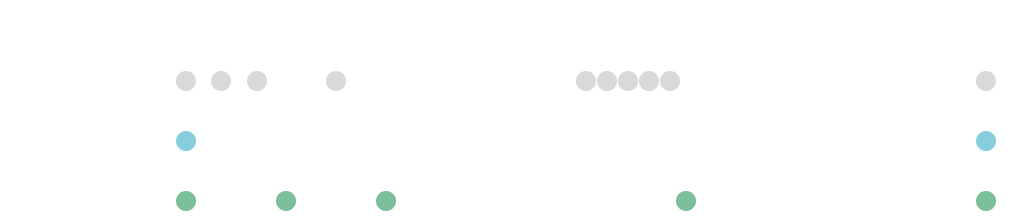 ***
| Time | Basic | Detailed |
| :------- | :------------------------------------- | :------------------------------------- |
| 09:30 AM | It appears one of your messages failed | It appears one of your messages failed |
| 10:00 AM | | It appears 2 of your messages failed |
| 10:30 AM | | It appears 1 of your messages failed |
| 12:00 PM | | It appears 5 of your messages failed |
| 01:31 PM | It appears one of your messages failed | It appears one of your messages failed |
## Configuration
In the SBMG portal, click the **Settings** menu item, then navigate to the
[**Configuration** tab](https://portal.sbmg.app/settings#configuration).
Under the **Failure Alerts** heading, select either the **Basic** or **Detailed**
option.
Click the **Save** button to apply your changes. The new configuration will
be applied to your gateway shortly.
We strongly recommend testing this feature to ensure it works as expected.
1. Ensure your gateway device is logged in and connected to the internet via Wi-Fi.
2. Enable **Airplane Mode** on the device.
3. From the SBMG portal, send a test message to your own number.
The message status in your Dashboard should change to "Failed," and you should receive a failure alert notification.
Once you've confirmed that alerting is working, disable **Airplane Mode** on your
gateway device to resume normal message sending.
**Message stuck in "Pending" status?**
When you enable Airplane Mode, your device's Wi-Fi may also turn off automatically. For this test to succeed, your gateway must remain connected to the internet. Most phones allow you to re-enable Wi-Fi while keeping Airplane Mode active.
If the issue persists after confirming your internet connection, please contact our support team for assistance.
***
| Time | Basic | Detailed |
| :------- | :------------------------------------- | :------------------------------------- |
| 09:30 AM | It appears one of your messages failed | It appears one of your messages failed |
| 10:00 AM | | It appears 2 of your messages failed |
| 10:30 AM | | It appears 1 of your messages failed |
| 12:00 PM | | It appears 5 of your messages failed |
| 01:31 PM | It appears one of your messages failed | It appears one of your messages failed |
## Configuration
In the SBMG portal, click the **Settings** menu item, then navigate to the
[**Configuration** tab](https://portal.sbmg.app/settings#configuration).
Under the **Failure Alerts** heading, select either the **Basic** or **Detailed**
option.
Click the **Save** button to apply your changes. The new configuration will
be applied to your gateway shortly.
We strongly recommend testing this feature to ensure it works as expected.
1. Ensure your gateway device is logged in and connected to the internet via Wi-Fi.
2. Enable **Airplane Mode** on the device.
3. From the SBMG portal, send a test message to your own number.
The message status in your Dashboard should change to "Failed," and you should receive a failure alert notification.
Once you've confirmed that alerting is working, disable **Airplane Mode** on your
gateway device to resume normal message sending.
**Message stuck in "Pending" status?**
When you enable Airplane Mode, your device's Wi-Fi may also turn off automatically. For this test to succeed, your gateway must remain connected to the internet. Most phones allow you to re-enable Wi-Fi while keeping Airplane Mode active.
If the issue persists after confirming your internet connection, please contact our support team for assistance.