> ## Documentation Index
> Fetch the complete documentation index at: https://sbmg.app/llms.txt
> Use this file to discover all available pages before exploring further.
# Using a CSV contact list
> Send a stream of messages from the web portal to contacts in a csv format
## Create your CSV
You can have as many columns as needed in your csv for contact properties with the only requirement being
the contact numbers have the column heading `phone_numbers` and these are formatted in E.164 international format.
## Upload your CSV
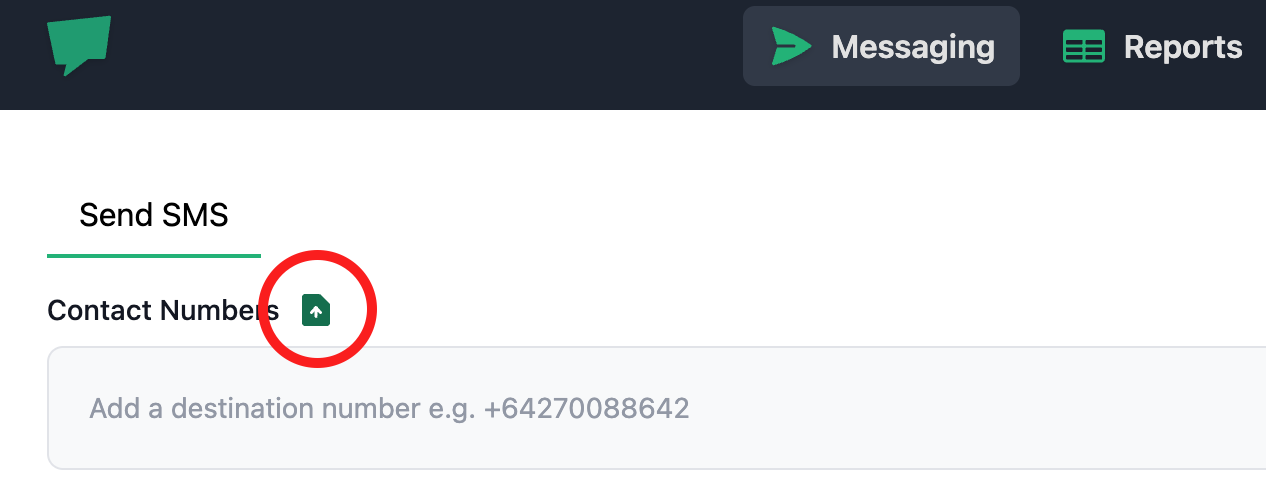
In the web portal message composer click the upload button and watch the contacts populate.
 Now you will have the valid contacts as destinations for your message.
Consider the size of your message and the number of contacts you have to send to.
Remaining data volume capacity for your plan can be seen in the [usage report here](https://portal.sbmg.app/reporting#usage)
Now you will have the valid contacts as destinations for your message.
Consider the size of your message and the number of contacts you have to send to.
Remaining data volume capacity for your plan can be seen in the [usage report here](https://portal.sbmg.app/reporting#usage)